LankaNova Hotel PMS
LankaNova Hotel PMS: User Guide
Everything you need to run your hotel with the program, from the first install to the last night audit.
Version 1.0 · for LankaNova Hotel PMS 1.0
1. Welcome
LankaNova Hotel PMS is one program that runs your hotel: the front desk, rooms and prices, the bills, housekeeping, the kitchen and its stock, reports, and your staff's phones. It is made for Sri Lankan hotels, villas and guest houses, in English and Sinhala.
You do not need to know anything about computers. This guide explains every screen and every setting in plain words. You can read it from start to finish, or jump to the chapter you need from the contents list.
The ideas you need
- The Hub
- The main PC at your front desk. Your hotel's data lives on it. Other PCs and phones work on that data through the hotel Wi-Fi.
- Admin
- The owner or manager's account. The Admin sets everything up and decides what everyone else may do.
- Staff ID and PIN
- How staff sign in on a phone: the hotel's App ID, their own Staff ID and a 4-6 digit PIN.
- Booking, stay, folio
- A booking is a guest's reservation. A stay is one room for certain nights. The folio is the guest's bill: room charges, food, extras, payments.
- Tape chart
- The picture of every room against the days, with each stay as a coloured bar.
- Night audit
- The end-of-day routine that posts room charges, flags no-shows, backs up and closes the day.
2. Installing and starting
What you need
- A Windows 10 or 11 PC (64-bit) for the front desk.
- Your hotel's App ID (like HPM-ABC234) and activation key, which LankaNova gives you.
- Optional: an Android phone for the Admin and for staff; a printer (any printer, or save as PDF).
Install
- Download the installer from the Download page of the website and run it.
- If Windows says "Windows protected your PC", choose More info, then Run anyway. This appears for any new program that does not yet carry a widely used publisher certificate.
- Choose where to install (the default is fine). Your hotel's data is never kept there.
- Open LankaNova Hotel PMS from the desktop shortcut.
Activate
The first time, the program asks for your App ID and activation key. Type them exactly as given. The program contacts LankaNova once to check them, then remembers. After this it checks again quietly every few hours, and still works if the internet is down.
First-time setup
- Enter your hotel's name, address, phone numbers, check-in and check-out times and VAT number (you can change them later in Settings, Hotel profile).
- Create the Admin account: your name, a username and a strong password. Keep this password safe. You can also give the Admin a PIN for quick unlocking.
Keeping the program up to date
The program looks for new versions by itself when the PC is online, downloads quietly, and installs only when you restart. It checks a digital signature first and makes a backup. You can also open Settings, Updates and press Check now.
3. Finding your way around
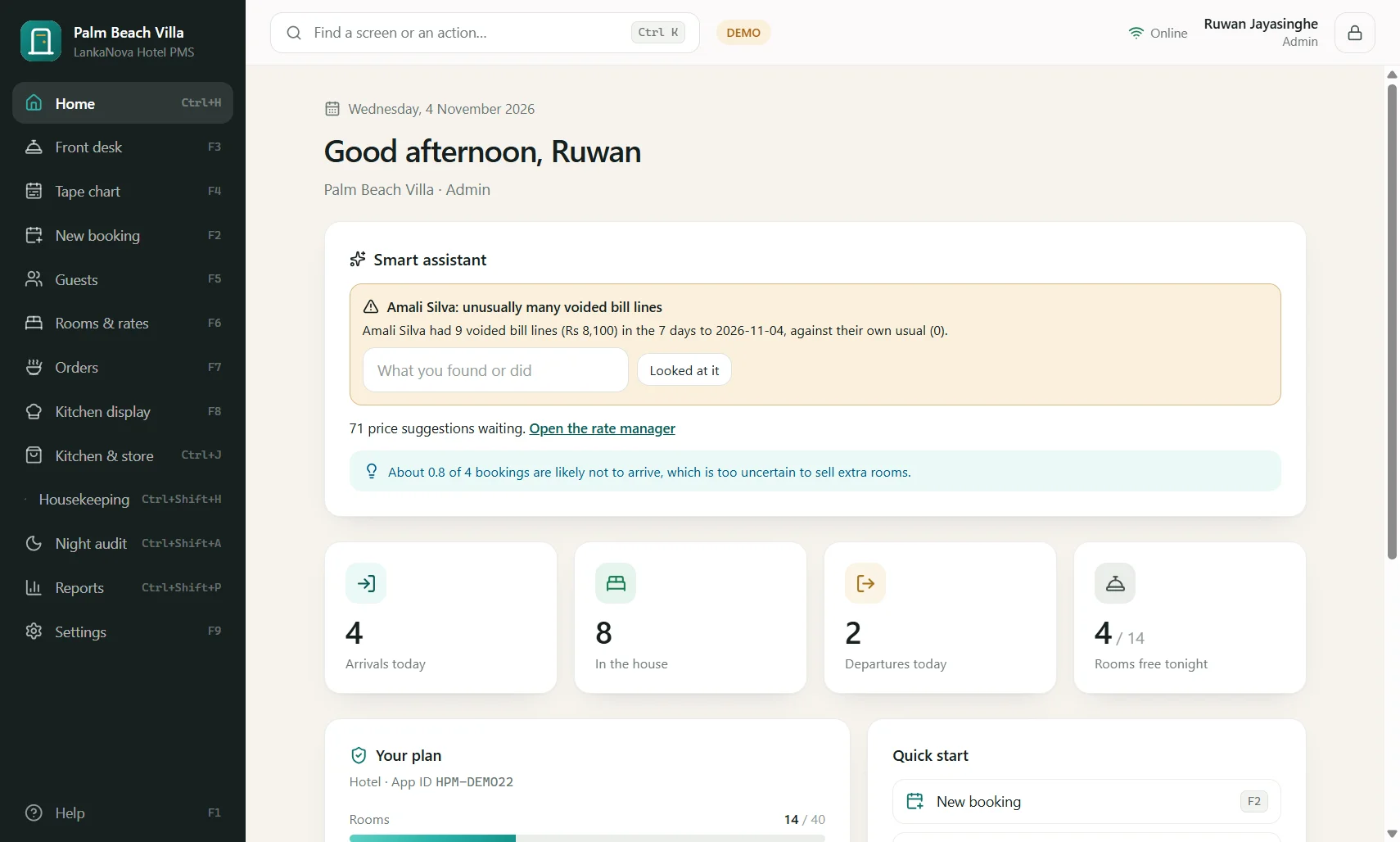
The dark panel on the left lists every screen. The search box at the top (Ctrl+K) finds anything. On the right of the top bar you see whether you are online, who is signed in, and a lock button.
Keyboard shortcuts
- F2
- New booking
- F3
- Front desk (arrivals, in house, departures)
- F4
- Tape chart
- F5
- Guests
- F6
- Rooms & rates
- F7
- Orders (restaurant and room service)
- F8
- Kitchen display
- Ctrl+J
- Kitchen & store
- Ctrl+Shift+H
- Housekeeping
- Ctrl+Shift+A
- Night audit
- Ctrl+Shift+P
- Reports
- F9
- Settings
- F1
- Help
- Ctrl+K
- Search / command palette
- Ctrl+L
- Lock the screen
Locking and signing out
Lock the screen when you step away (Ctrl+L). It also locks by itself after a few minutes you choose (Settings, Appearance). Unlock with your password or PIN. Always sign out at the end of your shift so the next person's work is recorded under their own name.
What the small labels mean
- "Online": the PC can reach the internet.
- "In the cloud": the latest changes are copied to your cloud copy.
- "DEMO": you are in the website's demo, not a real hotel.
4. Setting up rooms, prices and taxes
Do this once, in this order. Open Rooms & rates (F6). The four steps are shown as tabs.
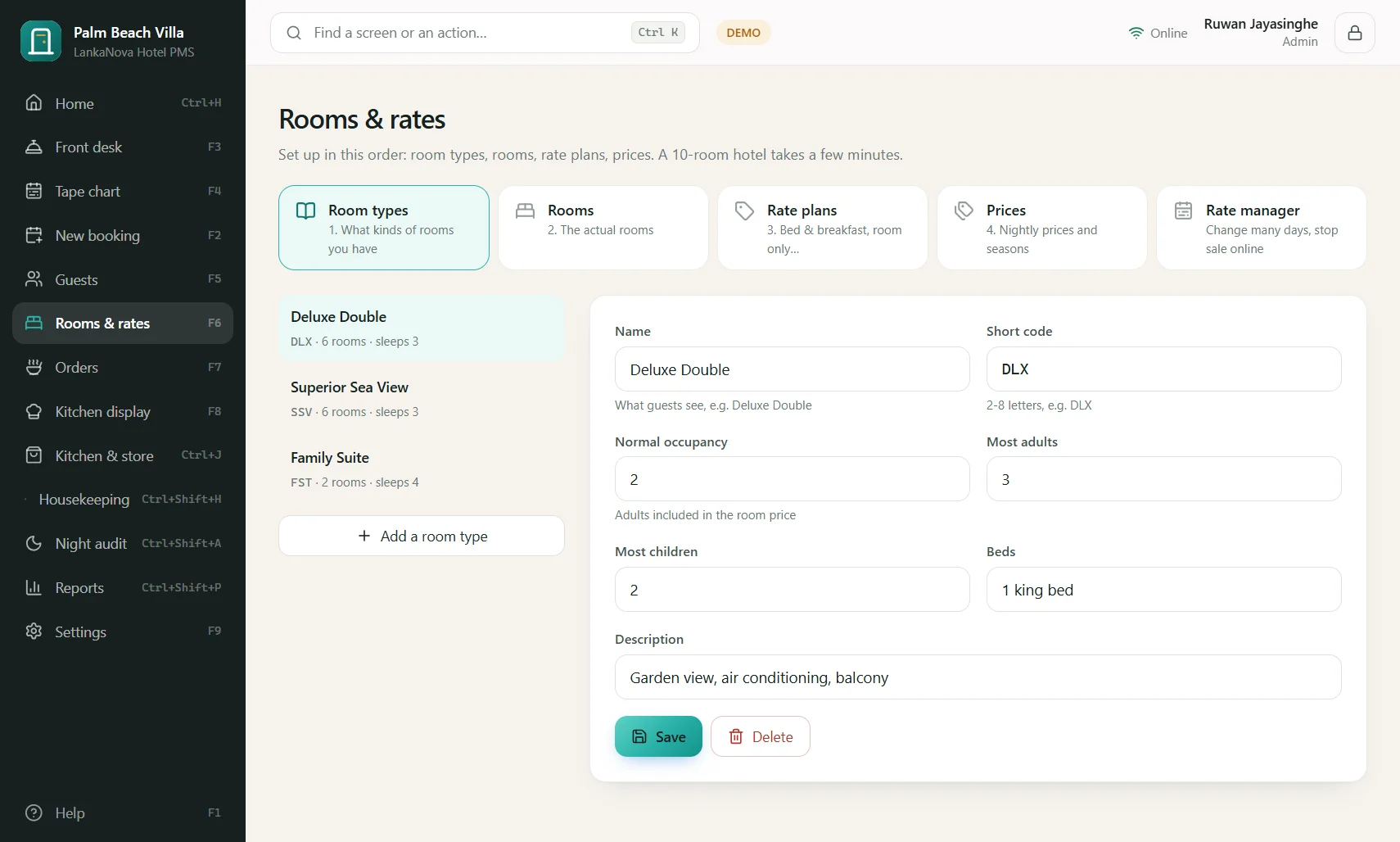
Step 1: Room types
A room type is a kind of room: Deluxe Double, Sea View, Family Suite. For each give a name, a short code (DLX), how many guests it normally takes, the most adults and children it can sleep, the beds, and a description. Guests see this on your booking page.
Step 2: Rooms
Add the real rooms. You can add many at once: type "101-106, 201" and choose the room type and floor. On each room you can tick Step-free (good for guests who cannot use stairs) and say which room it connects to by an inside door. "Assign all rooms" and the website use these.
Step 3: Rate plans
A rate plan is a way of selling: Bed & Breakfast, Half Board, Room Only. For each choose the meal plan, whether it is refundable, how many days before arrival a guest may cancel free, the cancellation and no-show charge in nights, and the minimum and maximum stay.
A plan can be derived from another: "Room Only = Bed & Breakfast minus 12%", or "Half Board = Bed & Breakfast plus Rs 4,500". Change the Bed & Breakfast price and the others follow.
Step 4: Prices
For each plan and room type enter the normal nightly price. You can add a price for one person alone, and extra prices per additional adult and per child. Then add seasons: a dated price (for example Christmas and New Year) that beats the normal price on those days. The latest season that covers a night wins.
Taxes and currencies
In Settings, Taxes & currencies set the service charge percentage, VAT, TDL, whether your prices already include tax, and the exchange rates for foreign guests. Invoices show each tax line.
The rate manager
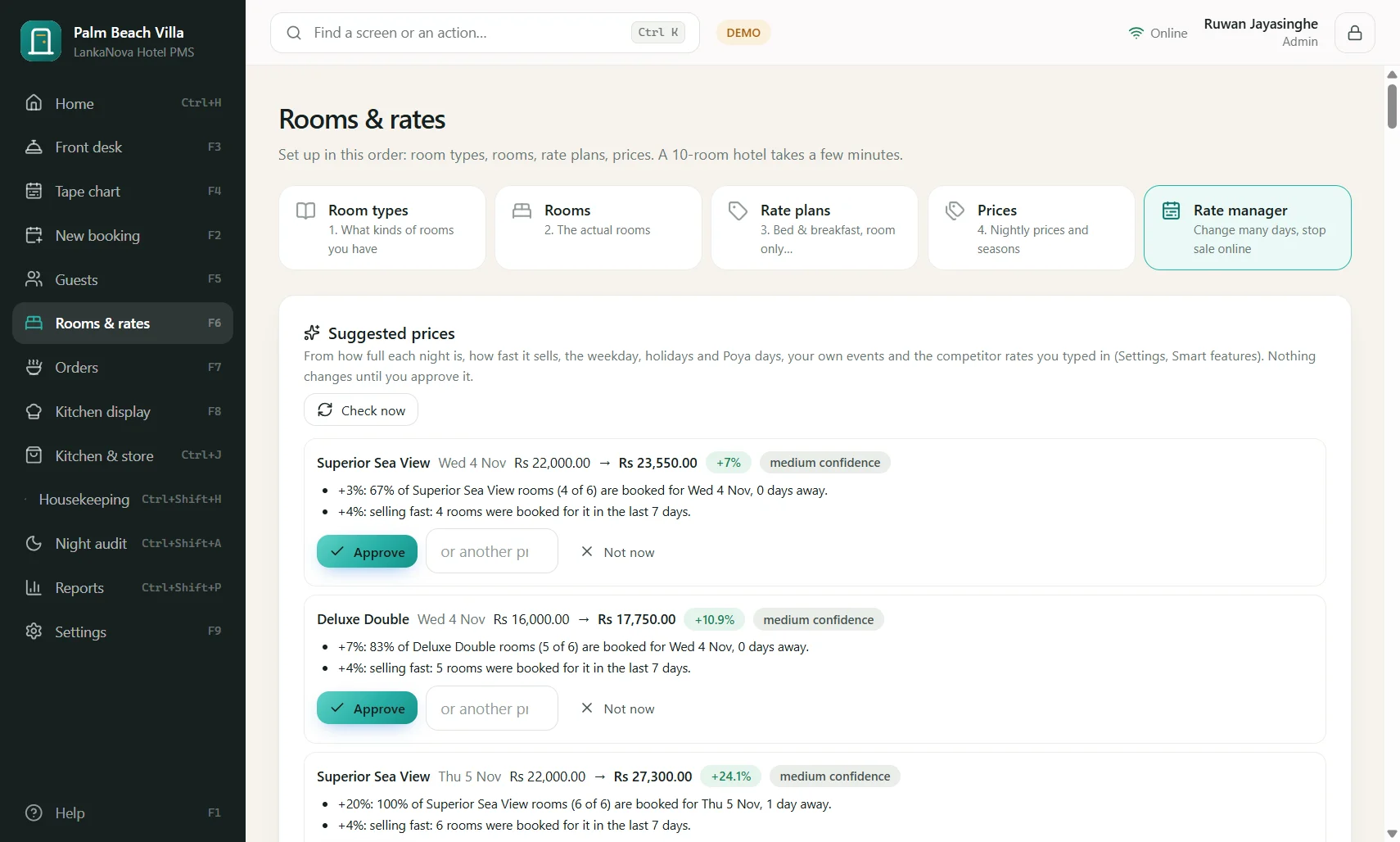
The Rate manager tab shows a month of prices for every room type at a glance. To change many days at once: tick the room types, choose the dates and weekdays, then raise or lower the price by a percentage or an amount, or set it. You can also Stop selling online for chosen nights, or set a minimum stay. These hold back sales on your website and booking channels only; the front desk can still sell those nights.
5. The front desk, day to day
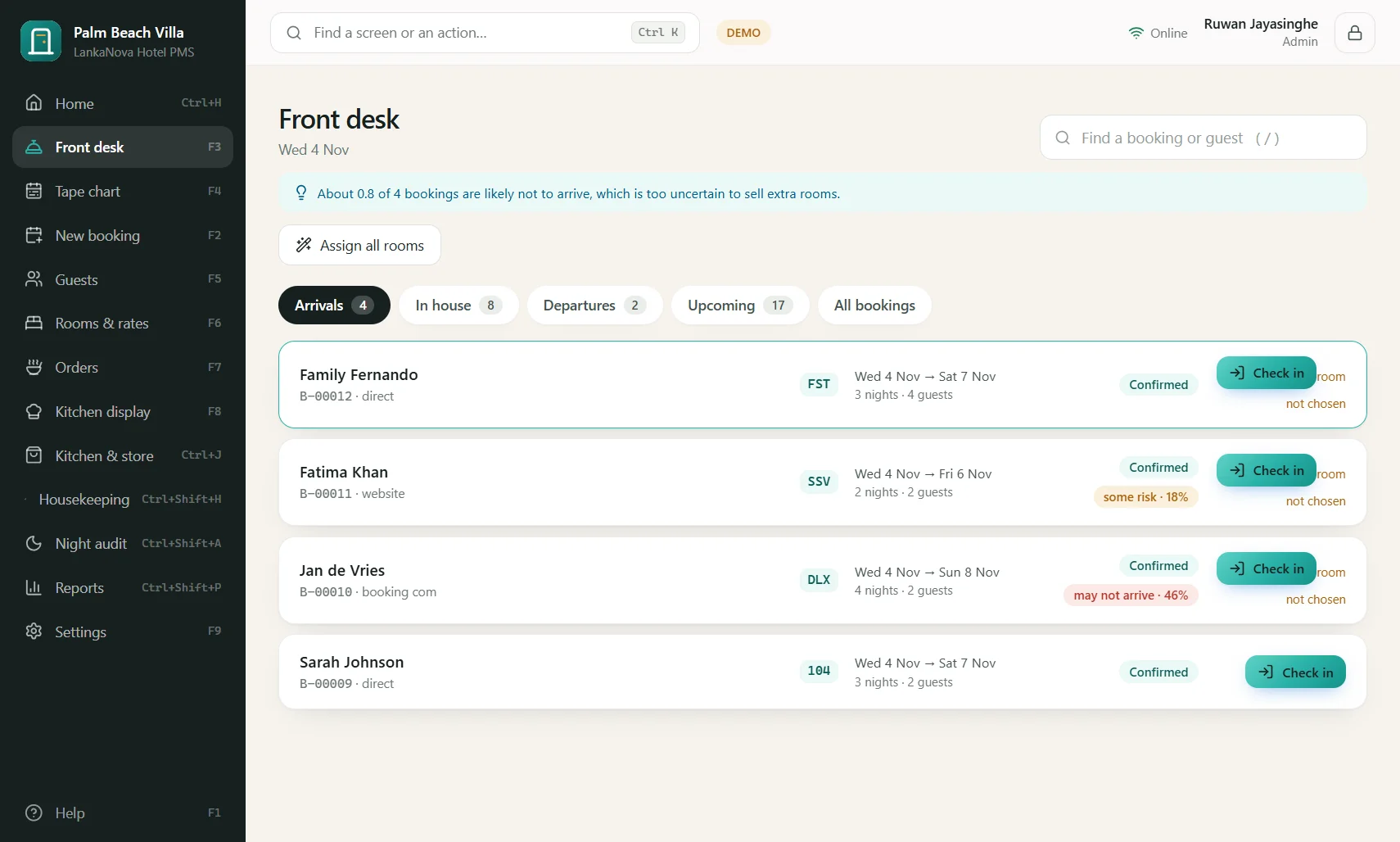
Front desk (F3)
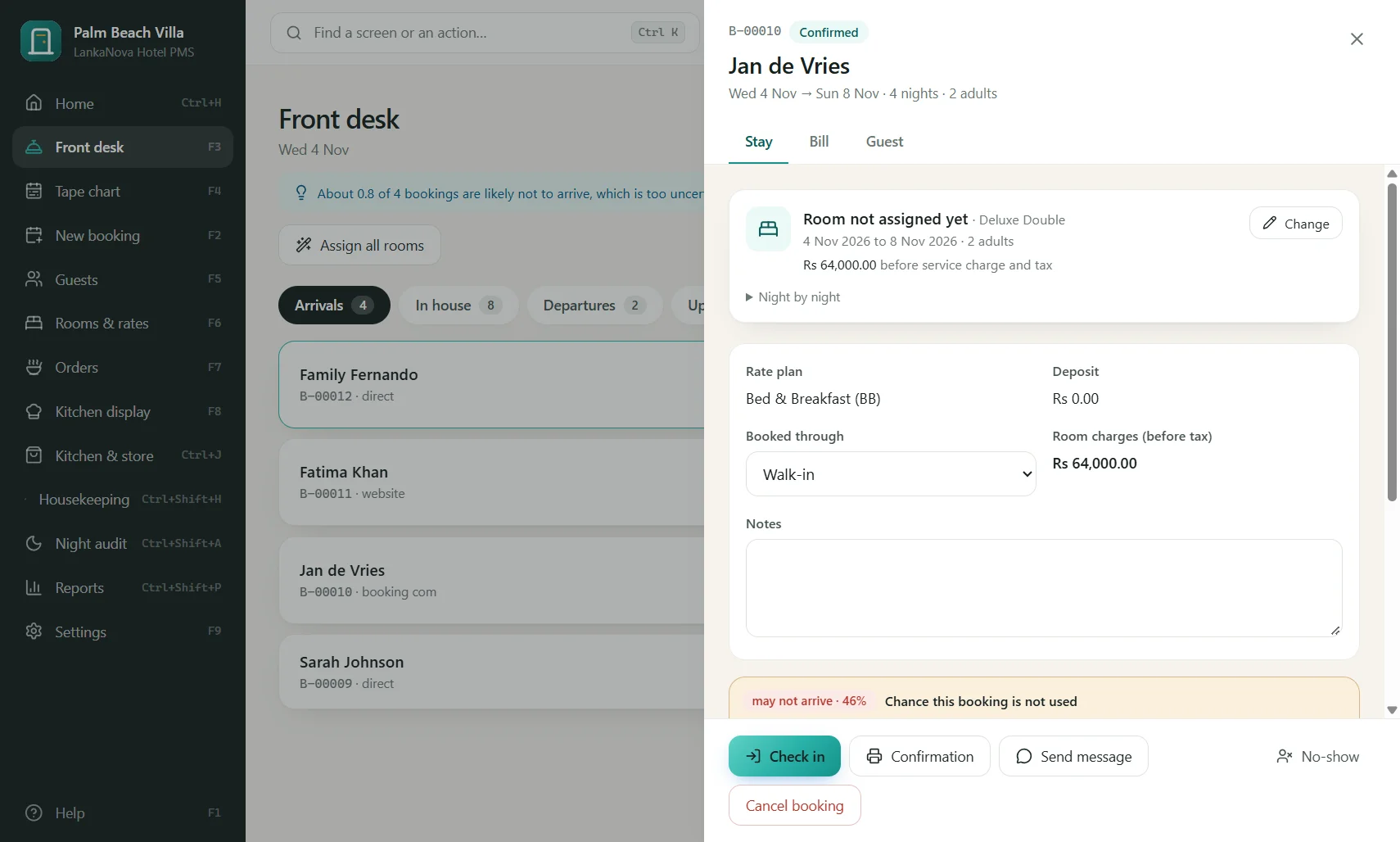
Four tabs: Arrivals, In house, Departures, Upcoming. Each booking shows the guest, rooms, dates, source and balance, with the one button it needs: Check in or Check out. Type in the search box (or press /) to find any booking by number, guest name or phone.
Making a booking (F2)
- Choose the arrival and departure dates and the number of adults and children. The program shows only room types that are really free, with the price.
- Pick a room type and rate plan. Pick a particular room if the guest wants one, or leave it for later.
- Choose the guest: type a name to find a returning guest, or fill in a new one (name, phone, country, ID).
- Choose the source (direct, Booking.com, walk-in...), add a deposit if one was paid, and any notes. Confirm, or save as tentative (held until a date you choose).
Check-in
Open the booking and press Check in. Confirm the room (or choose one), fill in the guest's ID details, and print the registration card if you want one. The room charges start. If the guest sent a pre-check-in form from their phone, you review and accept it first.
During the stay
- Change a room, or extend or shorten the stay: drag on the tape chart, or use the booking window.
- Add extras (laundry, airport pickup) and food to the bill.
- Take payments in cash, card, bank transfer or in a foreign currency.
- Offers: the booking window shows upgrades, late check-out, meal plan and airport pickup when they are really possible.
Check-out
Open the booking, review the bill, take the payment, press Check out. The invoice is made and can be printed or saved as PDF, the room turns dirty for housekeeping, and the booking closes. You cannot check out with money still owed unless you settle it first.
Cancel and no-show
Cancel from the booking window. The program applies the plan's cancellation charge (you can waive it if you have the permission). Mark no-show for a guest who never came. A held (tentative) booking cancels itself when its hold date passes.
The tape chart (F4)
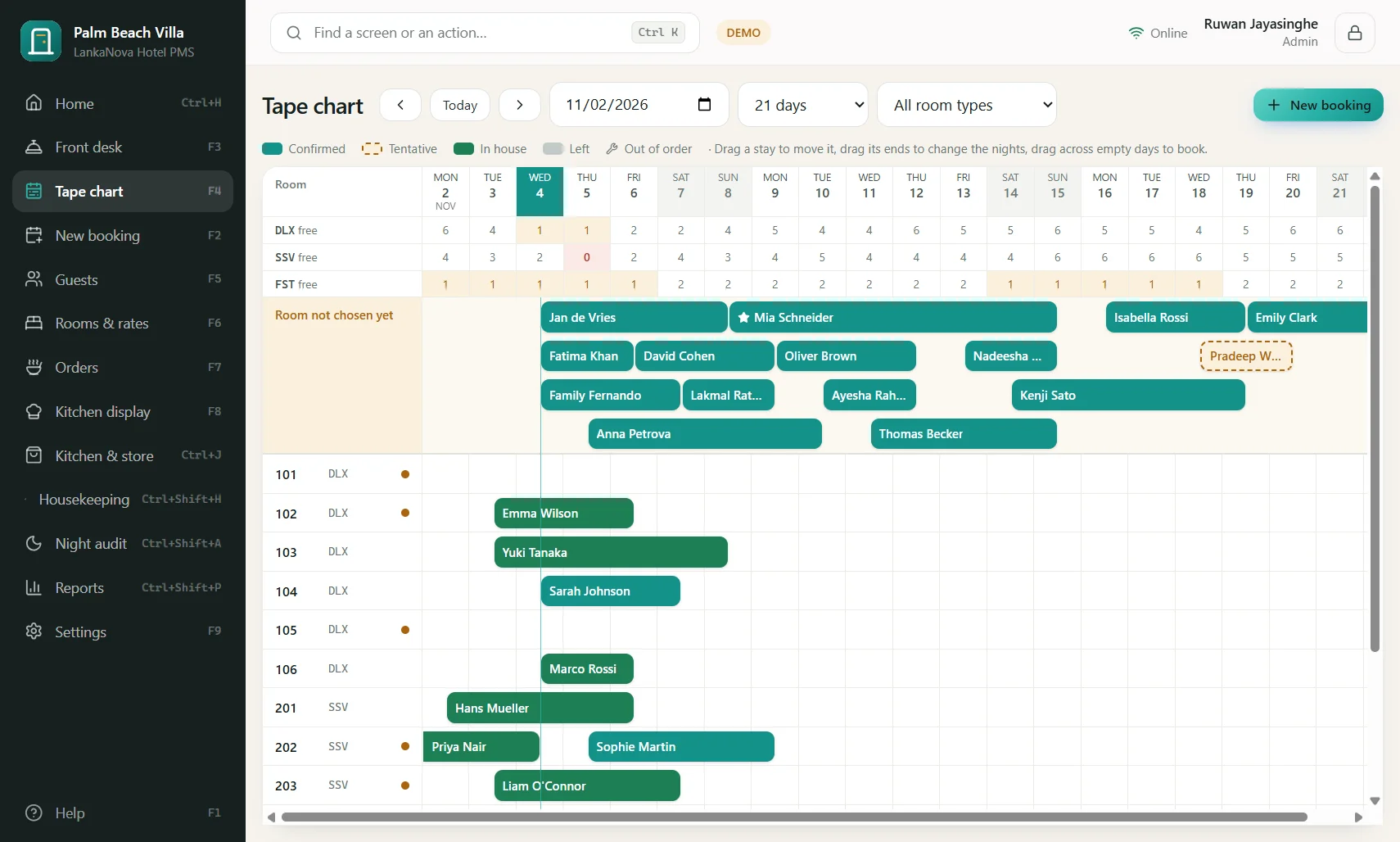
Rooms run down the side and days across. Each stay is a bar: green confirmed, dashed tentative, dark green in house. Drag a bar to another room or day to move it; drag its ends to change the nights. Drag across empty days to start a booking. Bookings without a room yet wait in the top band, "Room not chosen yet". The numbers at the top are the free rooms of each type each day.
Guests (F5)
The guest book: every guest with their stays, notes and preferences. Mark VIPs, record tax-exempt guests, and block a guest. Searching finds guests by name, phone or e-mail.
6. Bills, payments and invoices
Each booking has a folio (the bill) that fills as the stay goes on. Room charges are posted night by night; food and extras are added when they happen. Service charge, VAT and TDL are worked out for every line.
The rules that keep bills honest
- A line on a bill is never edited. A correction is a new line that reverses the old one, so the history is always complete.
- A discount needs the permission to give discounts, and a reason.
- A foreign-currency payment records the exchange rate used.
Payments
Choose the method (cash, card, bank transfer, PayHere, cheque, agent, deposit), the amount and a reference. Take a part payment any time. A deposit taken when booking is applied automatically.
Several bills for one stay
Create extra bills for a booking (for example the company pays the room, the guest pays the bar) and move lines between them. Each bill closes into its own invoice.
Refunds and overpayment
If a guest has paid more than the bill, the program asks you to refund the difference before closing. A refund is recorded as a line, with the method and reason.
Invoices and documents
- Invoice, receipt, pro forma and booking confirmation come from the booking or bill window. Print, or Save as PDF.
- They show your hotel's logo, name, address, phone numbers and VAT number at the top (set in Settings, Hotel profile; see the Images chapter).
7. Housekeeping and maintenance
Housekeeping (Ctrl+Shift+H)
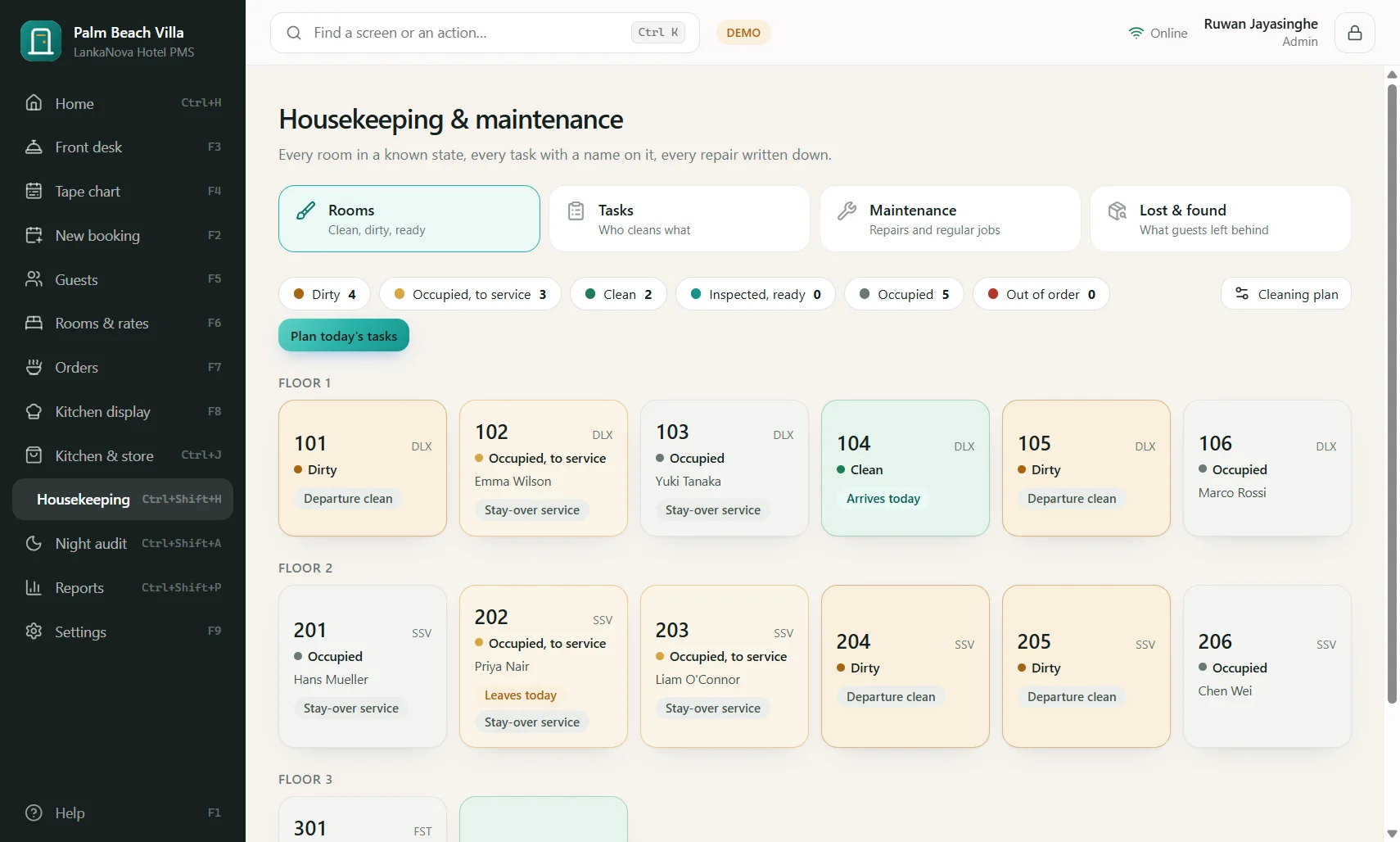
When a guest checks out the room turns dirty by itself. The screen shows every room as Dirty, Clean or Inspected. Press Plan today's tasks (on the Rooms tab) to create the day's cleaning list (stay-over and departure cleans). Assign each to a housekeeper, who starts it and marks it done on a phone or the PC; a supervisor then inspects the room. A room is ready to sell as Clean or Inspected.
- Minibar: charge items to a guest's room.
- Lost and found: record an item, where it was found, and who it was returned to.
- A room can be set Dirty, Clean or Inspected by hand.
Maintenance
Report a fault: choose the room or area, what is wrong and how urgent. You may take the room out of order for the days it needs, and it disappears from sale and shows on the tape chart. Close the ticket when fixed and the room returns. Recurring jobs (check the generator, service the AC) can be scheduled: set how often and when next due.
8. The kitchen, orders and stock
This needs the Kitchen add-on. The idea: write each dish once with its ingredients, and every order takes them from the store by itself.
Menu and recipes (Ctrl+J, Menu & recipes)
Add ingredients (chicken, rice, oil) with their unit, the level at which to reorder and the level you like to keep. Add dishes with a selling price. Open a dish and write its recipe: Fried Rice is chicken 250 g, rice 0.2 kg, vegetables 100 g, oil 30 ml. You can say how much of an ingredient is lost in preparation (yield). A prep item (a sauce) can be an ingredient of a dish. The program works out the cost of a plate.
Orders (F7)
Open an order for a table or a room, add dishes, add a note ("less spicy"), and Send to the kitchen. The order shows on the kitchen display; the ingredients leave the store. When it is served, bill it: pay at the table, or charge it to the room's bill.
Kitchen display (F8)
The cooks see new orders, mark them cooking, ready and served. Late orders stand out.
Store (Ctrl+J)
- Receiving: record goods in with quantity, cost and expiry date; the program warns if a price jumped.
- Waste: record spoilage so stock stays honest.
- Stock count: type what you counted; differences are recorded.
- Expiry: items about to expire are listed.
Purchasing and the forecast
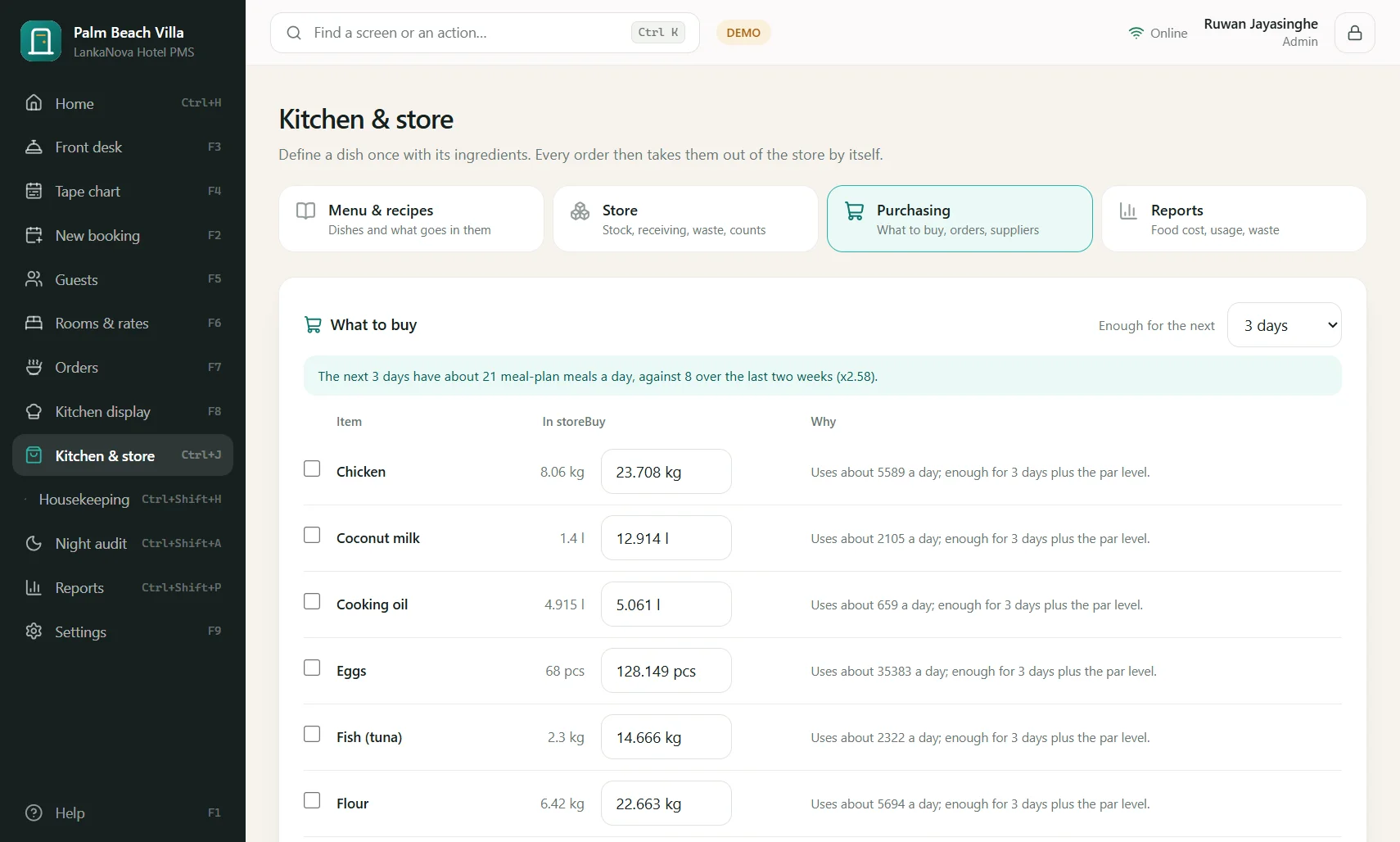
Purchasing suggests what to buy from usage and what is already ordered, and lets you make a purchase order and send it to the supplier. With Smart features, the forecast shows what to buy for the next 3, 7 or 14 days from what the kitchen sold on each weekday, scaled by how many guests will be in the house, then through the recipes, less your stock and open orders.
9. Reports and the night audit
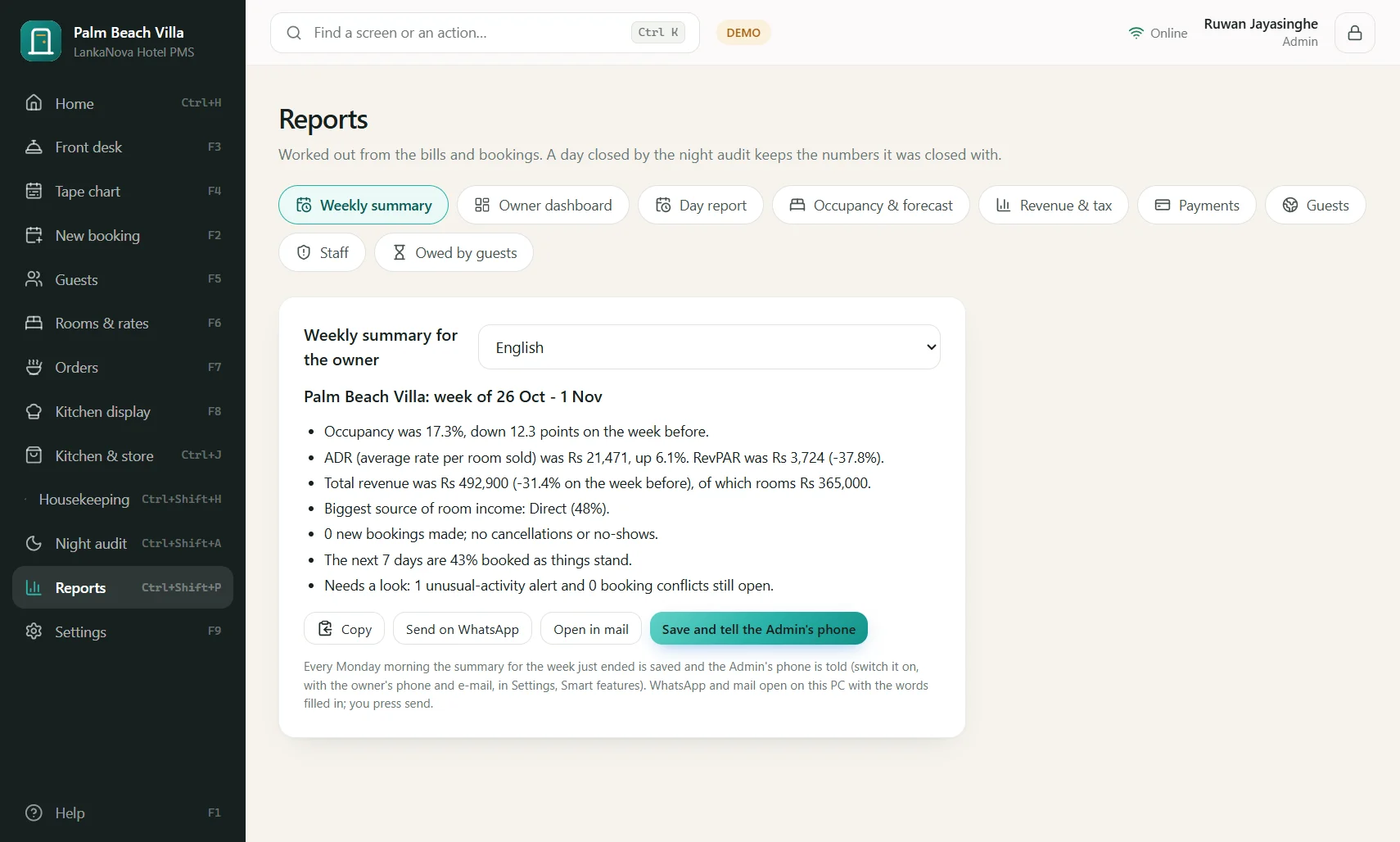
Reports (Ctrl+Shift+P)
- Weekly summary
- A short summary of the week in plain words, in English or Sinhala, with what changed and why. Send it to the owner on WhatsApp or mail.
- Owner dashboard
- Today's numbers, the last 14 days, and the 7 days ahead.
- Day report
- Everything for one day: revenue by kind, payments, check-ins, check-outs.
- Occupancy & forecast
- Occupancy, ADR (average rate per room sold), RevPAR (revenue per available room) by day, and what is booked ahead.
- Revenue & tax
- Revenue by source, room type and department; service charge, VAT and TDL totals for your accountant.
- Payments
- By method and by day.
- Guests
- Nationalities, sources, repeat guests.
- Staff
- Activity by person.
- Owed by guests
- Open balances.
Most reports can be saved to Excel or printed as PDF.
Night audit (Ctrl+Shift+A)
Do it every night. The audit walks you through: check that room charges are posted for every in-house guest, flag the guests who did not arrive, see the day's totals, make a backup, and close the day. A closed day keeps the numbers it was closed with, so reports for old days never change.
10. Staff, roles and permissions
Only the Admin can add people: Settings, Staff.
- Press Add a person, type the name, and choose a role.
- The program makes their Staff ID (like S-4821). Choose a 4-6 digit PIN. Tell them the App ID, their Staff ID and PIN.
- To remove access, switch the person off. Their past work stays recorded under their name.
Roles
- Admin
- Everything.
- Manager
- Most things except some settings.
- Front desk
- Bookings, check-in/out, guests, take payments, orders.
- Housekeeping
- The housekeeping and maintenance screens.
- Kitchen
- Kitchen display, orders and stock.
- Cashier
- Payments and orders.
- Accountant
- Reports, money, purchasing and the audit log (view).
- Night auditor
- Night audit, reports, check-in/out.
For one person you can give or remove a single permission (for example let a cashier give discounts, or stop a front desk agent seeing money reports).
Audit log
Settings, Audit log shows who did what and when, including sign-ins, price changes, voids and discounts. The log is chained so a changed or removed entry is detected.
11. Phones: the Android app
This needs the Android add-on. The same program runs on staff phones and on the Admin's phone.
Get the app
Download the APK from the Download page of the website on your phone, open it, and allow "install unknown apps" for your browser if asked.
Turn on the hotel network first
On the Hub PC open Settings, Hotel network, and turn it on. Phones join over the hotel Wi-Fi. The PC must stay on and on the same Wi-Fi.
The Admin's phone
- On the PC open Settings, Admin mobile app, press Pair a phone, type your password again and press Show the code.
- On the phone open the app, choose "I'm the Admin", and scan the QR code on the PC (or type the Pair ID).
- Check the certificate characters on the phone match the PC, then confirm. The phone is now yours and is protected by its own fingerprint or lock.
Staff phones
In Settings, Admin mobile app, press Show the staff link. On the staff phone enter the App ID, the person's Staff ID and PIN (or scan the staff QR). The Admin approves new staff phones: you will get an alert and a card on Home. A shared phone (for example at the pool bar) asks each person for their Staff ID and PIN.
Away from the hotel
After the first pairing, a phone can still reach the hotel through the cloud, with everything sealed so the cloud cannot read it. The PC must be on and online. The Admin's phone receives alerts: new suggestions, unusual activity, conflicts, and the weekly summary.
Lost phone
Settings, PCs and phones (or Admin mobile app): remove the phone. It can no longer reach the hotel.
12. Messages, payments and guest links
Guest links
From a booking you can send the guest a private link by WhatsApp, SMS or e-mail for: the pre-check-in form (details, ID photo and signature, sealed so only your PC can open it), the bill (with a Pay by card button if you switched that on), and a feedback form. The link expires and shows only that guest's information.
Settings, Messages
Here you set the information put into messages and on the guest pages: Wi-Fi name and password, breakfast hours, bank account for transfers, and the wording of each message in English and Sinhala. Sections for SMS, WhatsApp Business, card payments (PayHere) and the room QR menu are also here.
- Click-to-send WhatsApp
- Always free. Press the WhatsApp button on a booking; WhatsApp opens on your PC with the words typed; you press send.
- SMS (add-on)
- Texts go out by themselves on your own sender name: confirmations, reminders before arrival, thank-yous. Never at night (quiet hours), and never to a guest who opted out.
- WhatsApp Business (add-on)
- Automatic WhatsApp messages and a guest inbox. Needs your own Meta account details. Free-text replies work within 24 hours of the guest's message; after that an approved template is used.
- Card payments (PayHere)
- Enter your own PayHere merchant details. Guests pay deposits and bills by card from their phone; payments are matched to the bill automatically.
- Room QR menu
- Print a QR sheet for each room. A guest scans it, sees the menu with what is available, and orders; reception accepts, the kitchen cooks, and it is charged to the room.
WhatsApp inbox
Settings, WhatsApp inbox shows guests' messages to your hotel number and lets you reply.
13. Your own booking page and booking channels
Website booking (add-on)
Settings, Website booking gives you a page address like hotelpms.lankanova.online/b/HPM-ABC234 and an embed code to paste into your own website. Guests see free rooms and real prices, choose a room, and book on their phone, in English or Sinhala.
- A room is kept for the guest for 10 minutes while they fill the form, so the last room can never be sold twice.
- Choose whether guests may pay at the hotel, or must pay a card deposit (a percentage you set).
- Promo codes: a code, a percentage off, and the dates it is valid.
- Each website booking arrives at the front desk as a confirmed booking; reception chooses the room. A booking made at the desk a moment earlier always wins: the guest is told politely and a paid deposit is flagged for refund.
Booking channels (calendar links)
Settings, Booking channels keeps Airbnb, Booking.com, Agoda and VRBO in step with your rooms without any partner approval.
- Send: make a calendar link for a room type or a room and paste it into the channel's "import calendar". It shows only "Not available" for nights that are taken. Revoke it if it leaks.
- Bring in: paste the calendar address the channel gives you. Every 15 minutes the program reads it and blocks those nights on a free room, shown as "From Airbnb" on the tape chart.
- If a channel sells a night you have no room for, nothing is double-booked: a card appears for you to sort out.
A direct two-way connection (prices and availability pushed, reservations pulled in) is available where the channel has approved LankaNova; ask us.
14. Smart features
This needs the Smart features add-on. Every suggestion shows why, and nothing changes until you press Approve.
- Price suggestions
- In the Rate manager. For each night the program looks at how full the hotel is, how fast it is selling, the weekday, holidays and Poya days, your own events and the competitor rates you typed in, and suggests a price with the reasons. Approve, change the price, or say Not now.
- Assign all rooms
- On the Arrivals list. A proposal of a room for every arrival: accessible and connecting rooms first, floor wishes, no unsellable one- or two-night gaps, clean rooms for today. You untick any you want to place yourself, then apply.
- Offers
- In a booking: upgrade to a better free room, late check-out, a richer meal plan, airport pickup, each priced from your rules.
- Food forecast
- In Kitchen & store, Purchasing: what to buy for the next days.
- Alerts
- Every morning: unusually many voids, discounts, bookings priced below the rate card, short cash or stock that does not count right. The alert shows the person's number next to the typical number. The Admin's phone is told.
- May not arrive
- A badge on bookings that may not be used, with the reasons, and a note of how many extra rooms could safely be sold tonight.
- Smart search
- Press Ctrl+K and type a sentence in English or Sinhala.
- Weekly summary
- Reports, Weekly summary: the week in plain words.
Settings, Smart features, step by step
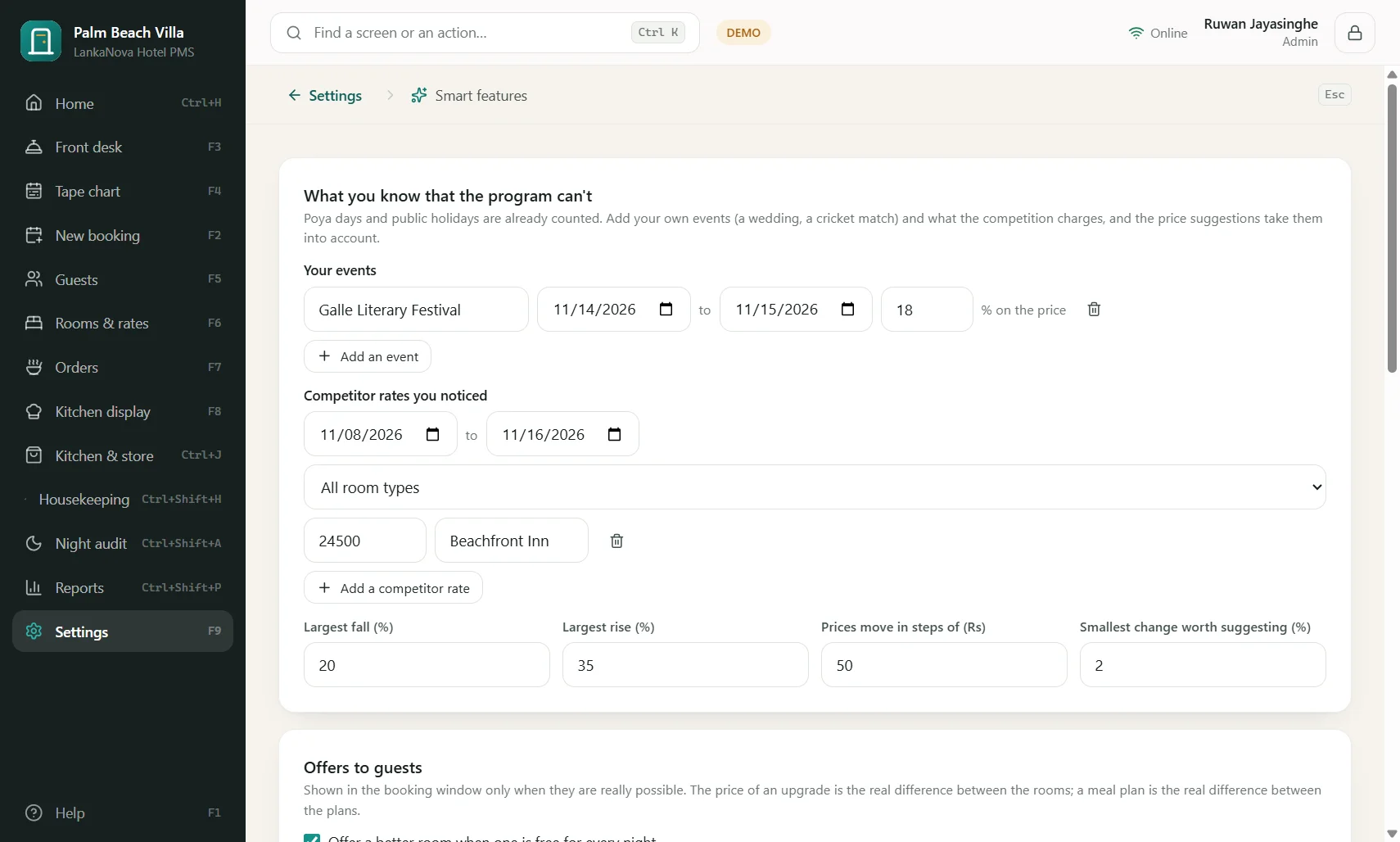
- Your events: a wedding or a cricket match, with dates and how much to add to the price. Poya days and public holidays are already counted (Poya dates are worked out from the moon and can be a day out: add the exact ones as events).
- Competitor rates you noticed: dates, room type, their price. The suggestion moves a third of the way toward the competition.
- Limits: the largest fall and rise a suggestion may make, the price step (for example Rs 50), and the smallest change worth showing.
- Offers: switch each one on or off and set the late check-out and airport pickup prices.
- Alerts and the weekly summary: switch on, the owner's phone and e-mail, and the language.
- Count the cash: at the end of a shift enter the cash counted; the program tells you the difference from what the books say you took.
15. Settings, one by one
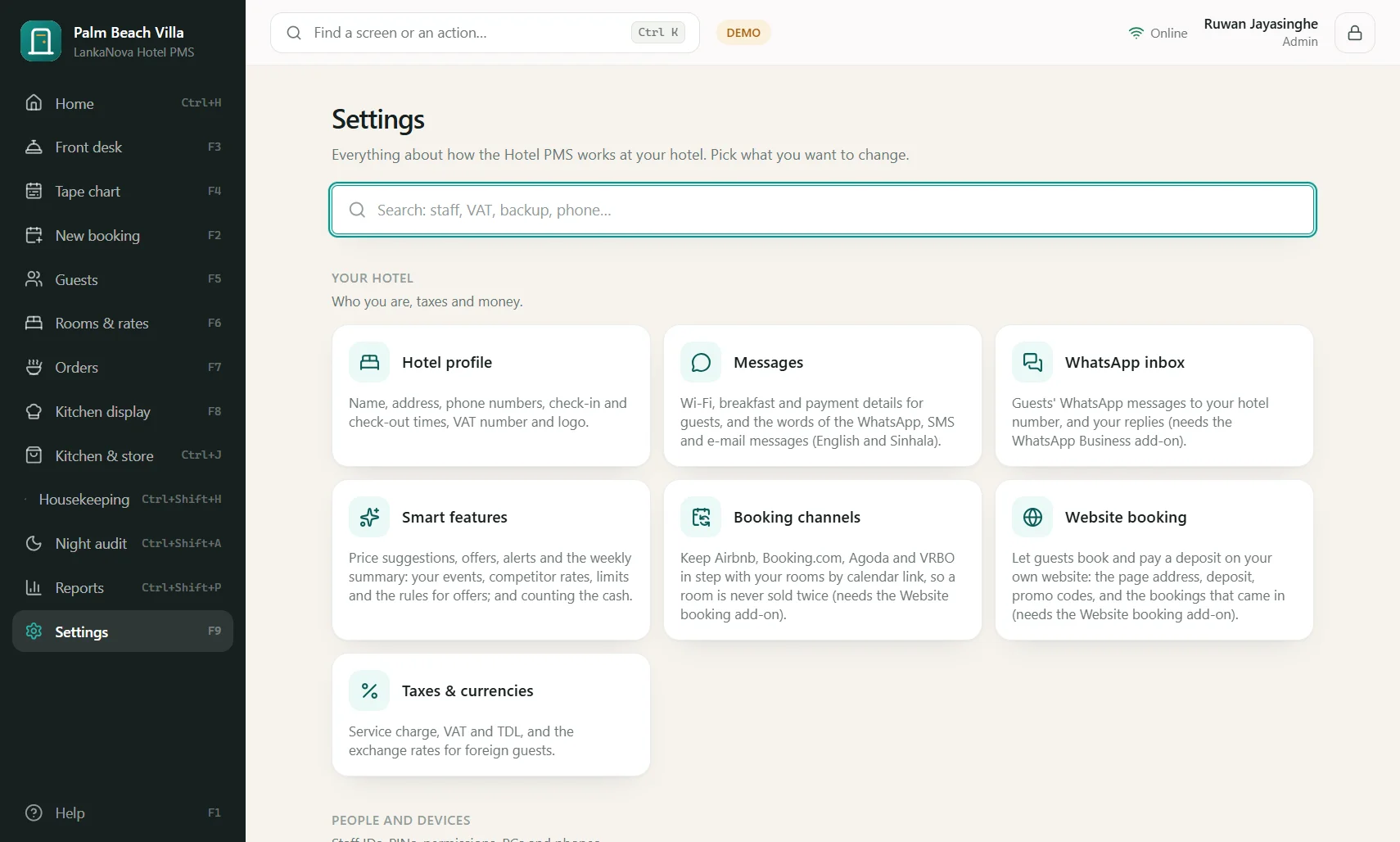
Open Settings (F9). Press Esc to go back. Each tile below is explained in order.
- Hotel profile
- Your hotel's name, address, phone numbers, e-mail, website, check-in and check-out times and VAT number, plus your logo. These appear on invoices, registration cards, confirmations and guest pages. Change them here and every document updates.
- Messages
- The information and wording used in messages and guest pages (see chapter 12). Also card payments, WhatsApp Business, SMS and the room QR menu.
- WhatsApp inbox
- Read and answer guests' WhatsApp messages.
- Smart features
- See chapter 14.
- Booking channels
- Calendar links for Airbnb, Booking.com, Agoda, VRBO; direct connections; what was sent and received.
- Website booking
- Switch the booking page on, the deposit percentage, longest stay, whether guests may pay at the hotel, the terms shown to guests, promo codes, and the list of bookings that came in.
- Taxes & currencies
- Service charge %, VAT %, TDL %, whether prices include tax, and the rupee value of USD, EUR and GBP used for foreign payments. Check these before you start; they appear on every invoice.
- Staff
- Add people, give Staff IDs and PINs, choose roles, adjust a single permission, switch someone off.
- PCs and phones
- Every PC and phone using your hotel and your plan's limit. Remove a lost phone or an old PC.
- Hotel network
- Turn on to let other PCs work on the same bookings through the hotel Wi-Fi. A new PC pairs with a 6-digit code shown on the Hub, valid for 5 minutes.
- Cloud sync
- Shows whether the cloud copy is up to date and when it last synced. Nothing to set.
- Admin mobile app
- Pair the Admin's phone and the staff link (chapter 11).
- Audit log
- Who did what and when.
- Backups
- Make a password-protected backup to a USB drive or folder, restore one, open the folder of daily copies. Your data is in Documents, LankaNovaHotelPMS.
- Updates
- Check now, and see the version. New versions install when you restart.
- Keyboard
- Change any shortcut key.
- Appearance
- Light or dark, text size, English or Sinhala, and how many minutes of idleness before the screen locks.
16. Images: your logo, and how pictures are handled
The program uses one picture of yours, the hotel logo, and handles guests' ID photos and signatures separately and very carefully.
Your logo
Set it in Settings, Hotel profile, under Logo. It is shown at the top of the left panel and on the sign-in screen, on the phone app, and at the top of every printed or saved paper: tax invoice, pro forma, guest registration card and booking confirmation.
- Open Settings, Hotel profile.
- Under Logo press Choose a picture and pick a file from your PC.
- The picture appears. Press Save.
The rules, so it always works
- Only PNG or JPEG pictures. The program checks the file's real contents, not just its name.
- At most 2 MB. Large pictures are reduced to at most 1200 pixels on the long side.
- Empty white or transparent edges are trimmed off, so the logo sits neatly.
- Best results: a logo on a transparent PNG, at least 400 pixels wide.
Where pictures are kept
Inside your hotel's encrypted database with the rest of your data, copied to your cloud copy and your backups. Nothing is kept as a loose file on your PC, so a backup restores your logo too.
Guests' ID photos and signatures
When a guest fills in the pre-check-in form on their phone, their ID photo and signature are sealed in their own browser so that only your hotel's PC can open them. They are fetched by your PC, shown to reception for review, and kept with the guest's record. The cloud only carries the sealed package.
17. Backups, cloud sync and a new PC
Three layers
- A daily copy on the PC, made by itself in the Backups folder inside LankaNovaHotelPMS (the last 14 are kept).
- A copy in your hotel's private cloud, kept up to date by itself whenever the internet is there.
- A backup you make yourself on a USB drive: Settings, Backups. It is protected with a password you choose. Keep the password safe: without it the backup cannot be opened.
Restoring
Settings, Backups, Restore: choose the file and type its password. The current data is first saved as a safety copy so you can go back. You can also restore from the very first start-up screen on a new PC.
Moving to a new PC
- On the old PC make a USB backup.
- Install the program on the new PC and activate it with the same App ID and key (we move the licence to the new PC for you).
- At the start screen choose Restore a backup, pick the file and enter its password.
If the internet is down
Nothing stops. The program works fully offline and sends the changes later. Phones away from the hotel, guest pages, WhatsApp and SMS need the internet.
18. When something does not work
- "This data belongs to another PC or is damaged"
- The data file was opened on a different Windows account or PC, or damaged. Do not delete anything. Restore a backup from the start screen, or call us.
- The licence screen appears
- The plan is past its date or was paused. Call us; your data is safe and untouched.
- A phone can't find the hotel
- Check that the Hotel network is on, the PC is on, and the phone is on the same Wi-Fi. Re-pair if it was removed.
- The QR code won't scan
- Raise the PC screen's brightness, hold the phone steady 20-30 cm away, wait to focus; or type the Pair ID.
- Updates say "signature didn't check out"
- Install the latest version from the Download page once by hand; updates work by themselves after that.
- A guest link says the page isn't right
- Links expire. Send a new one from the booking.
- Sinhala letters look wrong in a document
- Choose a printer or PDF; the program uses the PC's Sinhala font (Iskoola Pota or Nirmala UI), which Windows includes.
Errors the program meets are reported to us automatically (never guest details). Call 077 385 0235 or WhatsApp 078 937 1676 and tell us what you were doing.
19. Glossary
- ADR
- Average Daily Rate: room revenue divided by rooms sold.
- RevPAR
- Revenue per available room: room revenue divided by all rooms available.
- Occupancy
- Rooms sold as a share of rooms available.
- Folio
- A guest's bill.
- Hub
- The main PC that holds your hotel's data.
- Tape chart
- The rooms-by-days picture of all stays.
- Stop-sell
- Closing a room type for online sale on chosen nights.
- Derived plan
- A rate plan whose price follows another plan.
- TDL
- Tourism Development Levy.
- Poya
- Full-moon holiday; busy for local travel.
- App ID
- Your hotel's code (like HPM-ABC234).
- Staff ID
- A staff member's sign-in code (like S-4821).
Thank you for choosing LankaNova Hotel PMS. We are one phone call away: 077 385 0235.